
Quickstart
You need the app on your phone or tablet. There is no account. A company profile also needs the password they gave you.
Start a profile
-
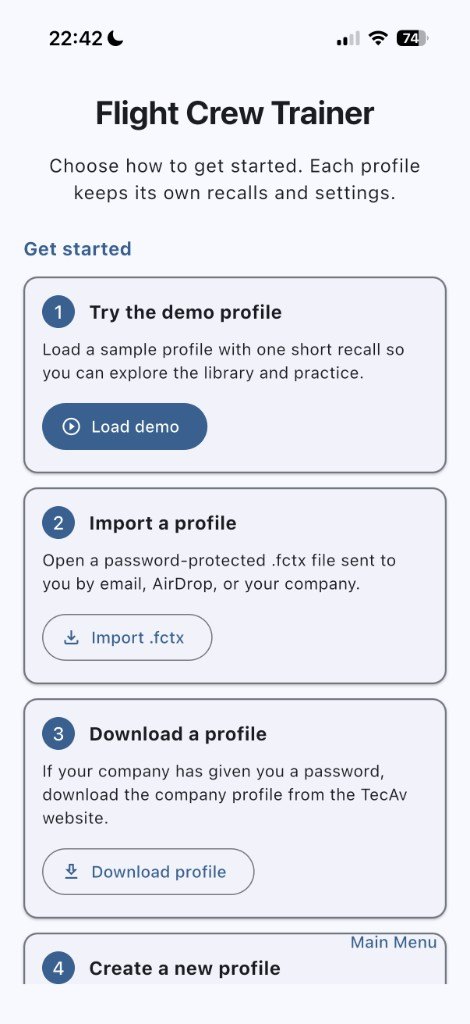
Open Flight Crew Trainer
On a new install, choose a demo, import a
.fctxfile, download a company profile, or create an empty one. The demo is one short recall so you can look around. -
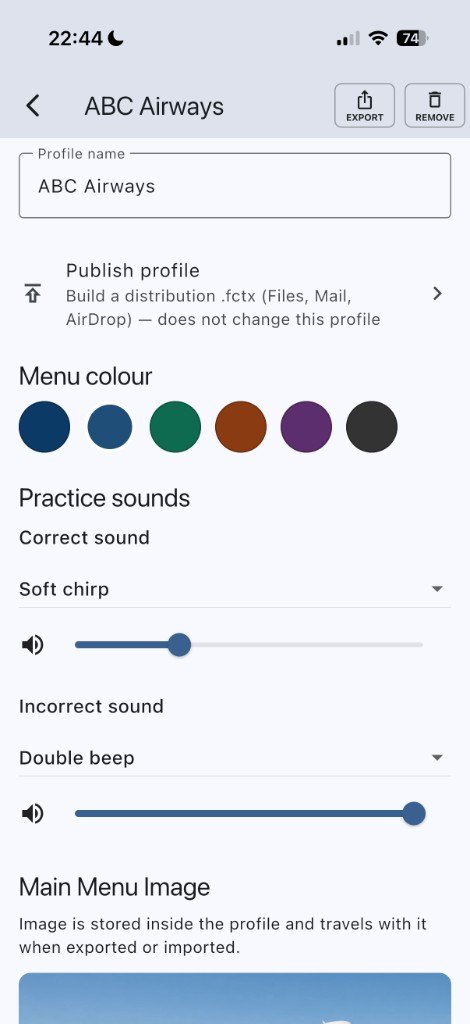
Name it
The name is the first thing in Settings. It is also the title under the menu picture.
-
Optional: a menu picture
Settings → Main Menu Image → Select Image from Gallery. The picture is stored in the profile and travels with an export. If you skip it, the menu shows an airplane icon.
Write one recall
-
Open the library
Pick a folder. You can create or delete folders. The defaults are Procedures, Recalls, Radio, Limitations, and 3 Times.
-
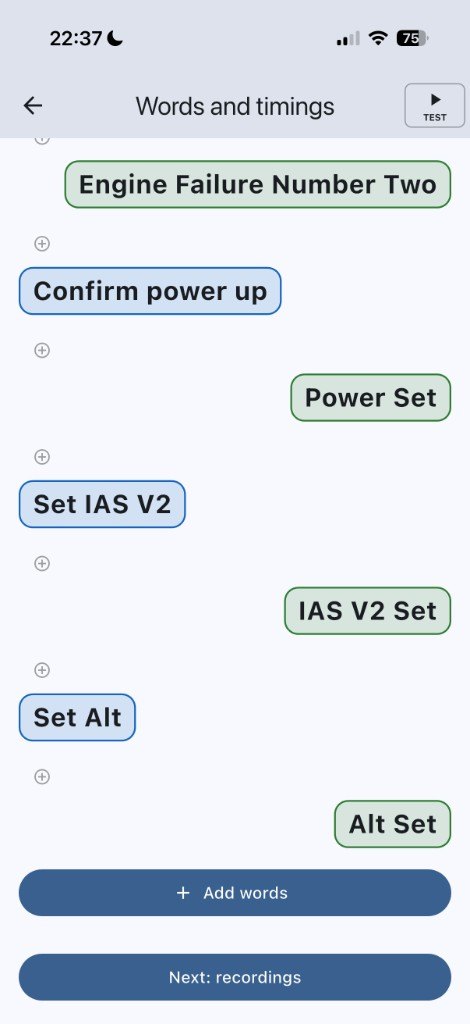
Add the words
Add each line and who says it. Set Quick and Actual timing in the timing window if you want a gap between lines. Swipe a line left, then tap Delete, if you need to remove it.
-
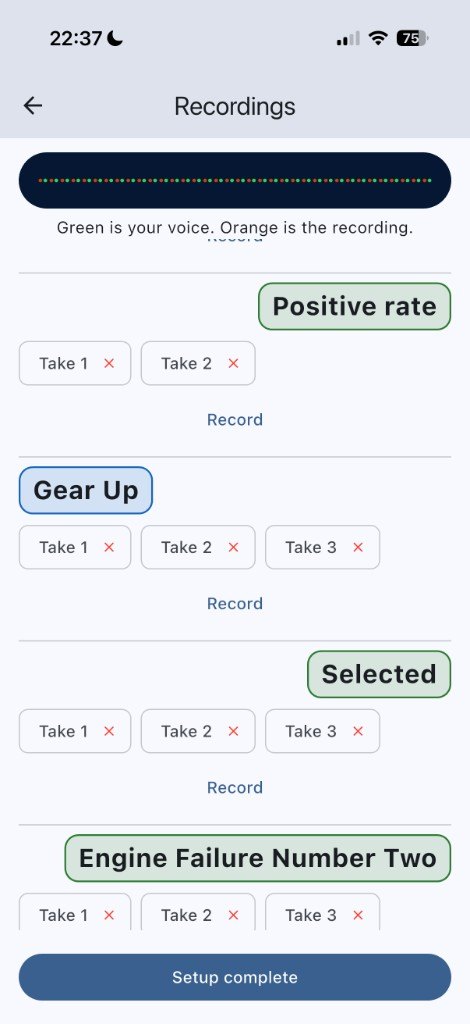
Record the lines
On the recordings step, record a take for each line you want in your own voice. You can keep more than one take. Lines without a recording use a voice on the phone.
-
Spoken words, if a figure is said the wrong way
Library → Words, in that folder. Written is what appears in the script. Say as is what the generated voice should speak. Swipe the row left, tap Delete, then confirm, to remove one.
Train
-
Choose how you will train
Visual is silence: you see the words and the phone stays quiet. Both shows the words and plays the sound. Audio is entirely by ear. Start it, put the phone in your pocket, and walk the dog.
-
Choose the items, or Automatic
Tick what to run, or let the app fill 5, 15, 30, or 60 minutes from what you have trained and what is still waiting.
-
Run it
Pause and Stop stay on the screen. The descent drill is one of the items you can tick. Set 3 or 5 times, and the cruise altitude, in the library first.
Then
- A company file is encrypted. In the app, use Download profile, or open a
.fctxfile, and enter the password. - The screen language is under the translate button. It does not rewrite the scripts.
- Deleting a folder, a recall, or a spoken word asks “Are you sure?” first.
- Need help? Contact support.